Use Guided Access on iPhone, iPad, and iPod touch
Learn how to use Guided Access to lock your device inside a single app temporarily.
Setup Guided Access
- Open Settings
- Tap Accessibility
- Scroll down to Guided Access
- Enable Guided Access
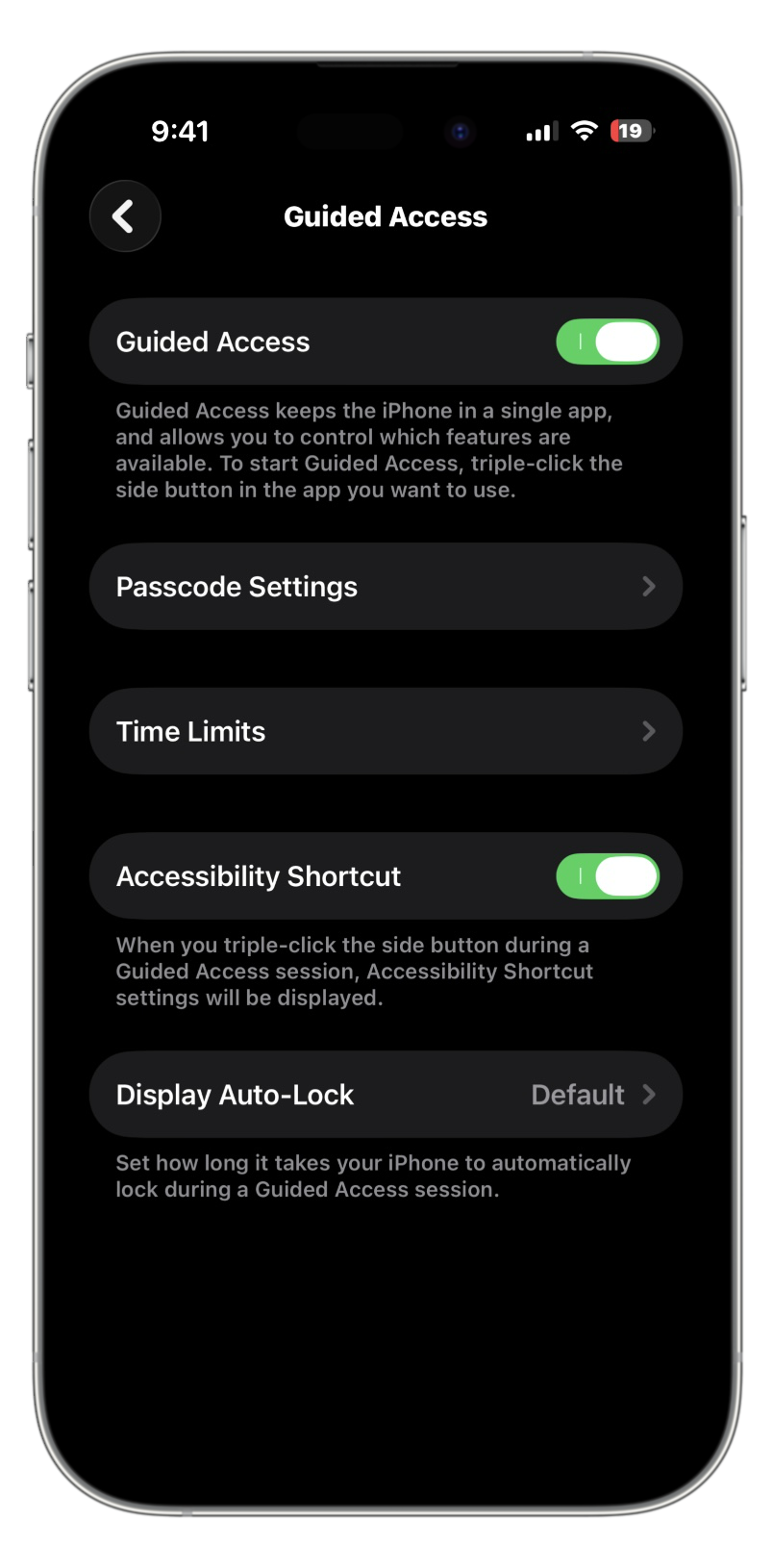
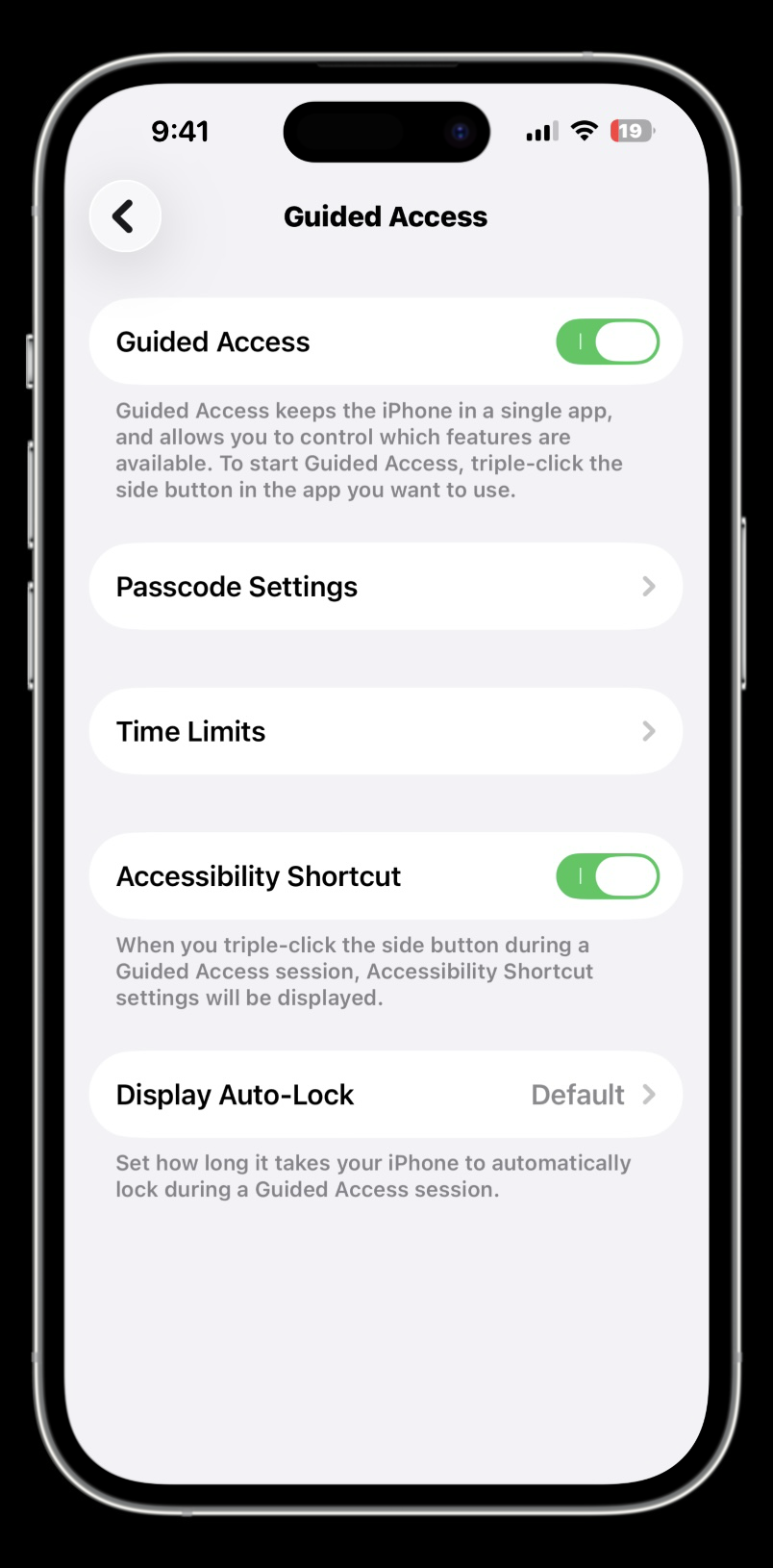
- You can configure the following settings:
‣ Passcode Settings: Set a passcode used to end or pause Guided Access sessions. You can also allow biometrics to end or pause Guided Access sessions.
‣ Time Limits: Choose whether to play a sound and have the remaining Guided Access time spoken allowed before a time-limited session ends.
‣ Accessibility Shortcut: Choose whether to allow or disable access to the Accessibility Shortcut when you triple-click the Power Button or Home Button while in a Guided Access session.
‣ Display Auto-Lock: Set how long it takes for your device to go to sleep if left inactive in a Guided Access session. This can be a different amount of time from the normal Auto-Lock Timeout set in Display & Brightness settings.
Use Guided Access
Follow these steps to start, pause, and end a Guided Access session while in the app you want to use with Guided Access.
- Triple-click Home Button (or the Power Button if your device has one). If Accessibility Shortcut is set up with features, a menu will appear and you will find Guided Acccess in this list. If Accessibility Shortcut is not set up, it will start Guided Access.
- If you previously used Guided Access in the app, the session begins immediately using the settings from the previous session. If this is the first time using Guided Access in the specific app, it will bring you to the Guided Access Screen.
- In the Guided Access screen, you can block of sections of the screen from being accessible when touched and adjust the settings for the session such as:
‣ Power or Home Button, When toggled off, this on prevents use of the button except to pause the session.
‣ Volume Buttons: When toggled off, this on prevents use of the volume buttons. In iOS and iPadOS 26.1 or later, this also prevents the ability to adjust the volume level with Bluetooth headphones.
‣ Motion: This turns on Rotation Lock so that the device will not change orientation.
‣ Software Keyboards: When Toggled off, this prevents the software keyboard from appearing.
‣ Touch: When toggled off, all touches will be ignored while in the Guided Access session.
‣ Time Limit: Set a time limit after which Guided Access shows a full screen message: Time Expired: “A time limit of [duration] has been set for Guided Access. Triple-click to enter the Guided Access Passcode.” - Tap Start in the top right to begin the session. If you didn't set a passcode in the Guided Access settings, you will be prompted to set a passcode before the session begins.
Pause or End a Guided Access Session
While in a Guided Access session, you can pause the session to adjust access settings or end the session by triple-clicking the Power button or Home button and authenticating to access the Guided Access screen. If the Accessibility Shortcut is allowed in Guided Access, tap Guided Access in the menu to pause the session. Tap Resume in the top right to continue the session or tap end in the top left of the screen to end the session and exit Guided Access.
Last updated: February 23, 2026
Reference the original support article by Apple here: - Apple Support
All references to Apple Inc. and their products and services are trade-marked and are used in these articles for educational purposes.