Digital Wellbeing and Parental Controls on Android
View your screen time or your child's and manage it with Digital Wellbeing and Parental Controls on Android devices.
Ways to Disconnect with Digital Wellbeing
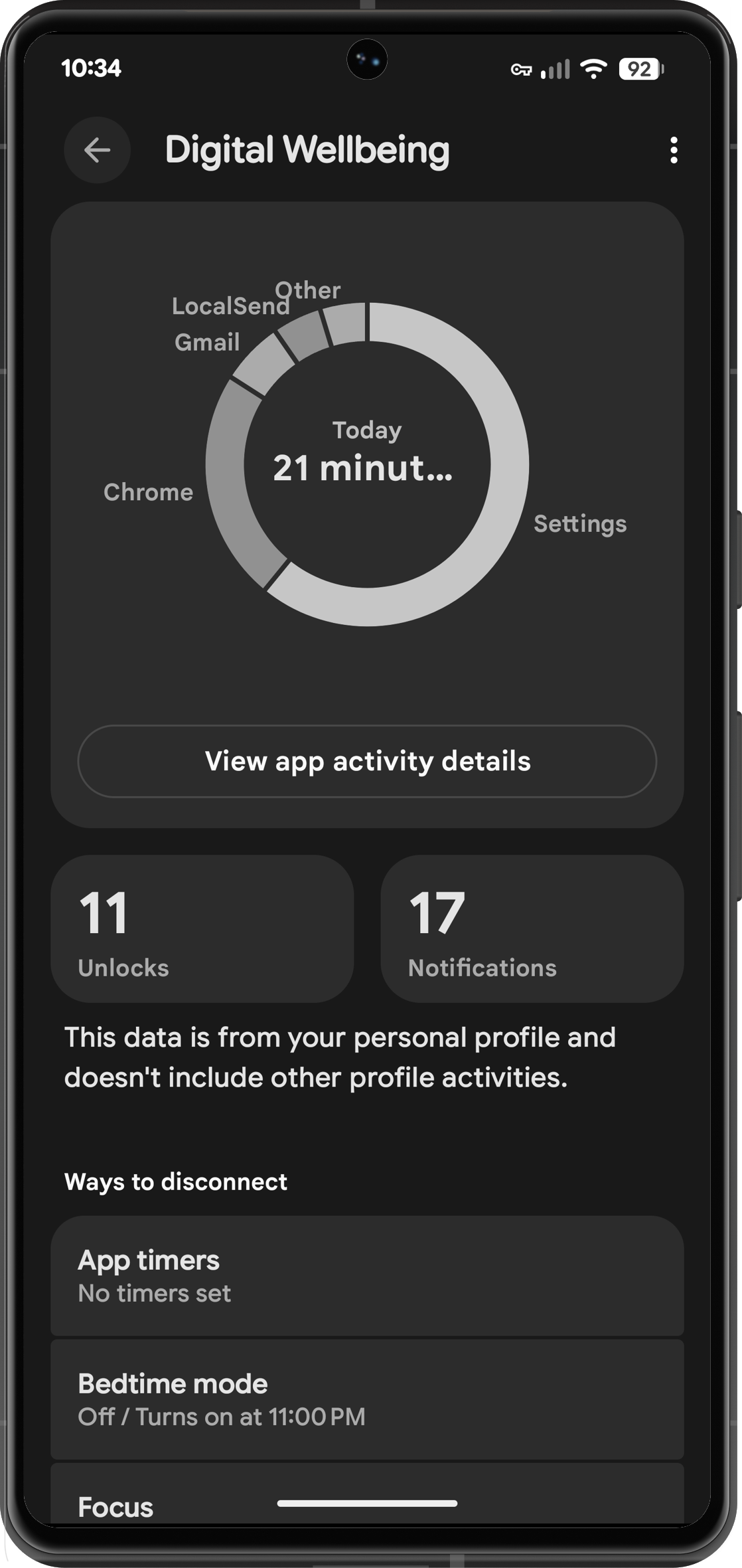
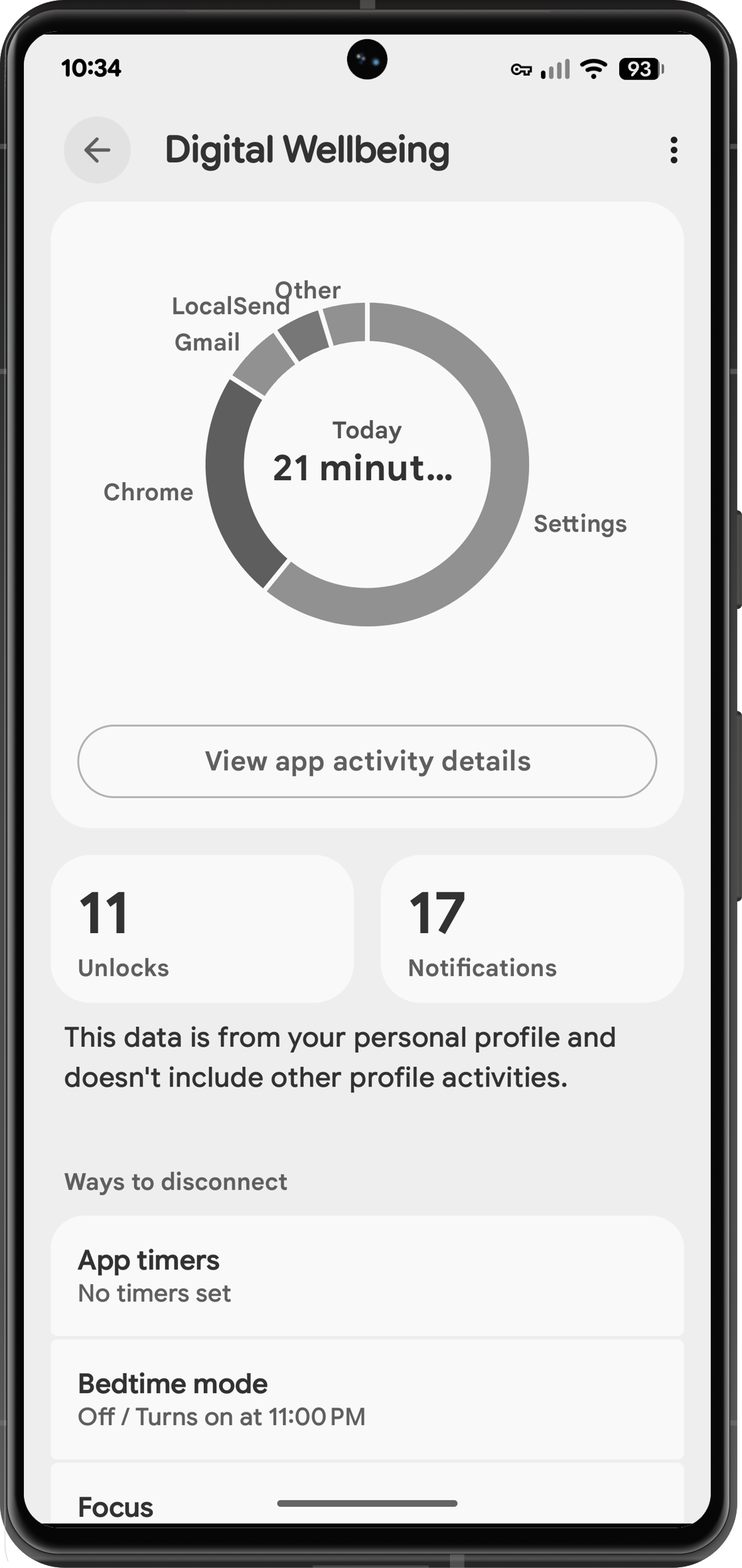
You can limit your own screen time with Digital Wellbeing by following these steps to set it up:
- Open Settings
- Scroll down to Digital Wellbeing
- Set app timers, bedtime mode, focus modes, andand screen time reminders under Ways to Disconnect or find more ways to limit distractions under the Reduce Interruptions section.
Setup Parental Controls
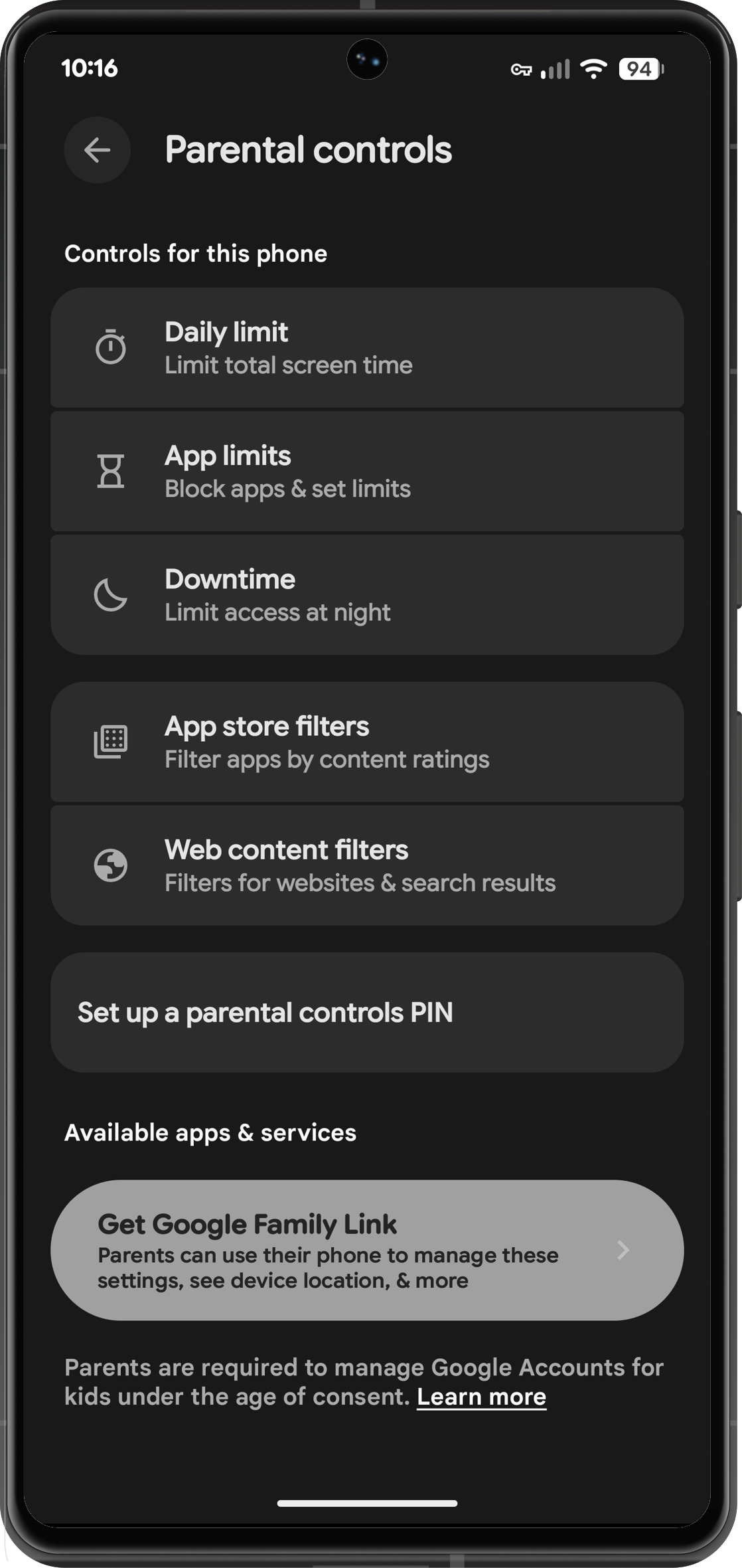
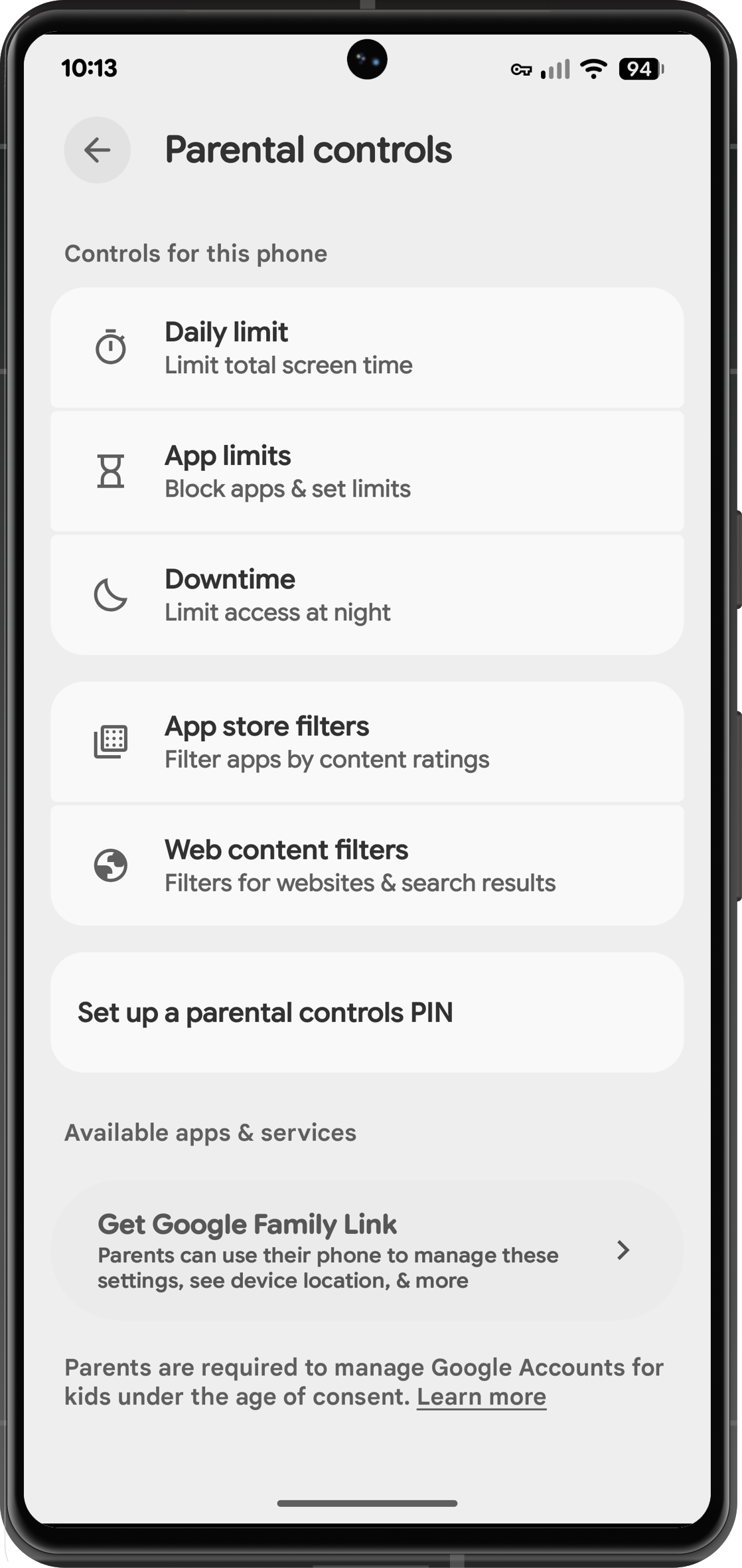
You can setup Parental Controls directly on a device for child by following the steps below:
- Open Settings
- Scroll down to Parental Controls
- Set daily limits, app limits, downtime, app store filters, and web contnent filter controls under Controls for this phone.
- Tap Set up a parental controls PIN to restrict access behind a passcode.
Please note that Parental Controls cannot be set up when a device has multiple profiles.
Use Family Link to Setup Parental Controls and Manage Parantal Controls
You can setup and manage your child's device through Family Link on your smartphone. Note that Apple products cannot be supervised through Family Link; however, you can access and supervise your child's device on an iPhone or iPad with Family Link for iOS and iPadOS.
- Open Family Link (Download: Google Play or App Store)
- Select your child's account in the top left
- Tap Screen Time
- Setup Daily Limit, App Limits, and more.
If you have never used Family Link before, you will need to create an account for your child or connect their existing Google Account.
Last updated: April 8, 2026
Reference the original support articles: Get Started with Family Link - Google Support
All references to Google LLC, Apple, and their products and services are trade-marked and are used in these articles for educational purposes.